Empowering Ontario educators with assistive technology tools that make reading accessible for all learners. (Image is AI generated)
How Covid & Remote Learning aexcelerated the Digital Shift in Education
COVID forced the world into the 21st century. Teaching remote learning required us to become tech-savvy overnight. Whether we stayed that way is up for debate—and if not, what a great tragedy.
COVID-19 pushed teachers into a digital-first approach almost overnight. Remote learning revealed both opportunities and challenges in supporting diverse learners, especially students with IEPs or literacy struggles.
What I Wish Knew Back in 2006
When I first started teaching high school students in 2006, many of them were functionally illiterate—something I wasn’t fully prepared to address, despite all my training.
Looking back, there are so many things I wish I’d known then, and so many things I should have learned (but don’t) through my many AQs: Reading Part 1, Special Education Parts 1–3, Assistive Technology, and more (see quals, if your curious).
The Right to Read Report: A Wake-Up Call
In the Right to Read (R2R) report (Ontario Human Rights Commission, 2019+), the commission acknowledged that 25% of Ontario students are not being taught to read effectively.
That means in an average classroom of 20–30 students, 2–4 of them cannot read.
(See my previous posts on high school illiteracy and what to do about it.)
The report also suggested that assistive technology has allowed the system to avoid doing the real work. While tech can support learning, it is not a replacement for teaching decoding and fluency.
Instead, the report promotes the use of science of reading methods to teach all students to read.
However I still believe that assistive tech has its place although:
Assistive tech should support the work of reading—not replace it.
At that time, 25% of students were failing the Grade 3 literacy test—the exact same percentage highlighted in the R2R report. Coincidence? Maybe not.
The Balance: Don’t Throw the Baby Out with the Bathwater
Assistive technology can:
Reduce cognitive load for struggling readers
Support comprehension and fluency
Encourage independent learning
Support better writing through the editing process (errors are easier to see when heard rather than read)
Align with Universal Design for Learning (UDL)
While we must teach every student to read, we shouldn’t abandon assistive technology altogether.
Accessible tech can help all students learn better—not just those who struggle with reading.
Students who find decoding difficult can use tech to offload some of the cognitive load and focus on higher-order skills like:
Asking meaningful questions
Making inferences
Drawing connections…
Even your strongest readers benefit from multi-sensory learning—seeing, hearing, touching, speaking (and maybe smelling, though I haven’t tried that one yet!).
Even our best readers learn better and remember more when engaging with material in multiple ways.
So… How Do You Actually Get the Text into Assistive Tech?
Technology changes constantly.
Back in 2006, we had to scan each page of a book, upload it into Kurzweil, and then teach students how to use it. It was all on the Special Education teacher. Maybe that’s why moving the responsibility to classroom teachers has been so difficult.
Today, things are easier—but only if we know what tools to use and keep learning as tech evolves.
The skill of supporting students so they can learn—that’s timeless.
Building Tech Independence: Let Students Do It
You know the saying: “Teach a person to fish, and they eat for a lifetime.”
So, “Teach them to fish” — let them explore, experiment, and even teach the class.
Encourage self-directed learning, group challenges, or competitions.
Whenever possible, get students to do it themselves—as long as it’s quick, easy, and modeled first.
✅ Example:
“Okay class, take a picture of the handout and use the tech I showed you.”
❌ Not this:
“Take a picture of every page of the book and then follow these 12 steps…”
Make it engaging! Turn it into a class project or friendly competition. Have students discover how to use assistive tech and then teach the class.
Everyone using it to makes things easier & simple means of access, makes all the difference between engagement and avoidance.
This builds essential skills like:
-Self-directed learning
-Research
-Evaluating credible sources
And yes, you can even bring in AI as a support tool (that decision’s up to you).
AERO Ontario homepage where teachers can order digital copies of textbooks for students with IEPs.
Working alongside the Special Education teacher taught me so much. One thing I discovered (that never came up in my Spec Ed courses!) is that Ontario teachers supporting students with IEPs can sign up for an AERO account to order ePub or Word versions of most classroom texts.
If they don’t have your title:
1. Mail the book to them (check if your Special Education department covers costs).
2. AERO will remove the spine, scan it, and return it spiral-bound—perfect for a teacher copy.
3. Share the digital file with students (be sure to review the legal use policy).
2 – Scan a PDF Copy Yourself
Most modern photocopiers can scan and email documents as PDFs—or save them directly to a USB drive.
You can also use your smartphone:
1. Take photos of the pages
2. Compile them into a PDF using built-in features (on iPhone: Notes > Scan Documents)
Just make sure pics are right side up.
*Review copyright laws for legality.
PART 2 – Using Assistive Tech: The Practical Guide
Almost every device today has built-in accessibility tools that can read text aloud. Here’s how to enable them:
1 – Take a picture/screenshot:
If students take a picture they can use their device’s tech to read it. For example:
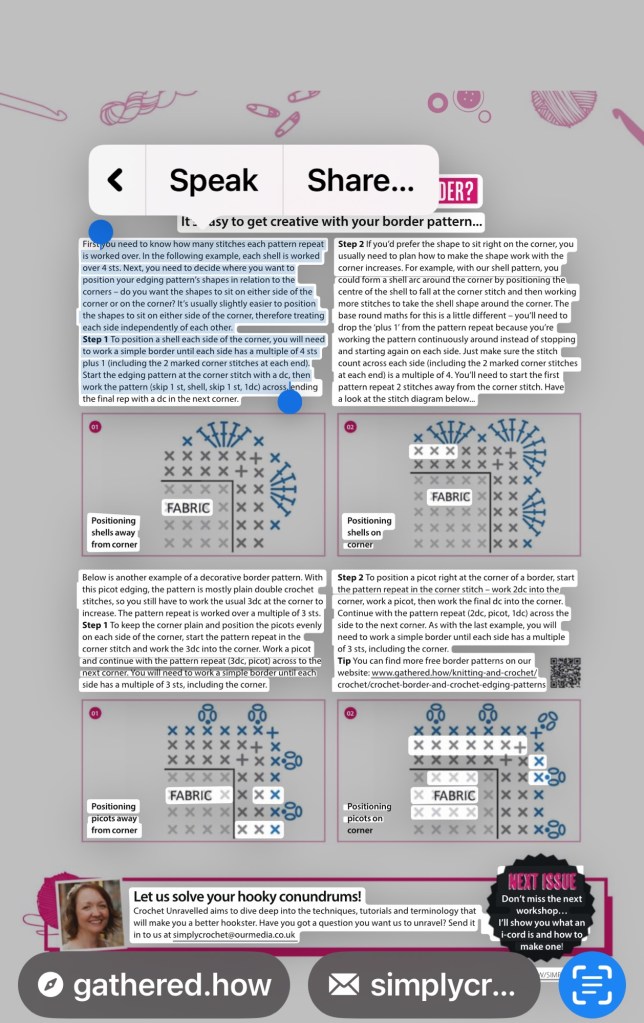
1. I took a screenshot of this crocheting magazine from my library Libby app
2. Clicked on the square
3. Highlighted the text
4. Clicked on speak
And the iPhones assistive tech read it to me.
I could just as easily have taken a picture of the physical magazine and followed the same process.
Many devices, apps, programs and even web browser extensions have accessibility features and have the capacity of reading text aloud.
At that time, 25% of students were failing the Grade 3 literacy test—the exact same percentage highlighted in the R2R report. Coincidence? Maybe not.
📱 Cell phones:
iPhone (Speak Screen & Speak Selection)
1. Go to Settings > Accessibility > Spoken Content (or Speech)
2. Enable Speak Selection (reads highlighted text) or Speak Screen (reads the whole screen)
3. To use: Highlight and tap Speak, or Swipe down from the top of the screen with two fingers
Technology keeps evolving (thankfully, accessibility is now a design priority). If in doubt, Google it or ask AI how to enable text-to-speech on your specific device.
Assistive technology doesn’t replace reading instruction—it supports learning and enhances access, equity, and engagement.
When used intentionally, it supports learners of all abilities and models the adaptability we want them to develop for life.
The more we understand technology, the more we can make learning accessible for every student — today and in the future.
By learning how to use tech, with our students, we are not only supporting each student’s learning but modelling how to learn itself – that skill is timeless.





 Teaching Literacy through Mastery and Discovery